Create powerful email signature for Mozilla thunderbird or get the signature html code with MySign
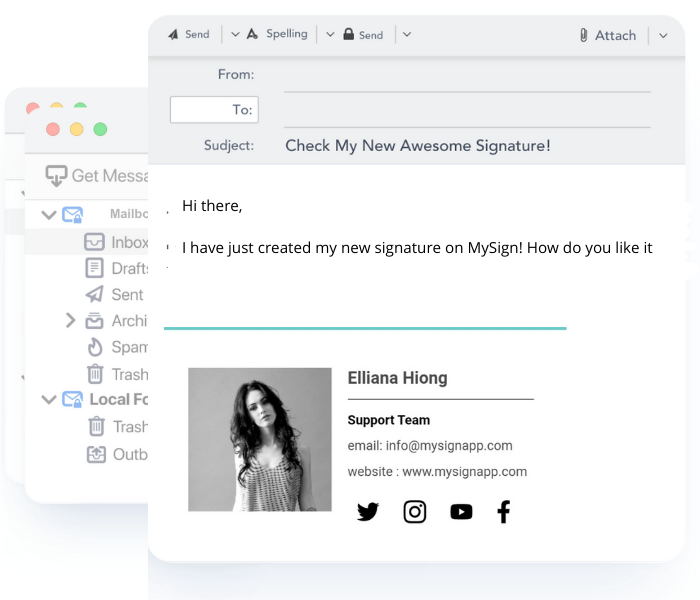
How to generate a personal Thunderbird email signature in a step-by-step guide?
You may create a Mozilla Thunderbird email signature with the support of MySign. There are now a few more steps. You adhere to them. Make a fantastic signature for yourself as well.
- Create a MySign/SignUp account.
- Go to the dashboard and click on "Create Signature."
- Select your favourite template.
- Fill in all relevant details, such as your name, phone number, job title, department, company, email address, etc. Configure text settings, add a logo, banner, or social networking icons, and write a disclaimer.
- Save your signature
- Afterward, scroll a little and copy the HTML code you see on the left;
- Launch Thunderbird >Go to Tool > Account Setting and pick the account for which you are going to paste a signature;
- Simply check the Use HTML option and use the Cmd+V or Ctrl+V keyboard commands to paste your email signature.
Frequent questions
Do you have some questions ? Find answers in our FAQ.
1. How to create a Mozilla Thunderbird professional email signature?
MySign can help you create a professional email signature.MySign is a tool that lets you create a professional signature in a matter of minutes.You follow our given instructions.
3. Can I create a Thunderbird signature with an image or logo?
Once you have filled in all your information, you can then go to the image section and upload your logo and image.
Simultaneously, you can adjust the size and shape of the image or logo.
2. Can I create a free email signature for Thunderbird?
Yes, MySign lets you create a Thunderbird Signature for personal use for free.
4. What are the steps to adding an email signature to Thunderbird?
- Sign up for MySign.
- Choose a template
- Fill in all the necessary information.
- Save it.
- Copy the source code (HTML) and paste it into your Thunderbird account